


Google Analytics is a free tool from Google that gathers statistics about the visitors to your website. Google Search Console provides reports on the queries and keywords that visitors use to find your site in the Google Index.
Google Analytics reports can be quite daunting to understand. So our TruthVine websites come with a simplified dashboard to give you an overview of the visitor statistics.
Before we can set that up for you, there are a couple of steps you’ll need to follow to create a Google Analytics and Search Console account for your website. Do give us a shout if you get stuck on any of the following instructions – we’ll be happy to walk through them with you.
Setting up a Google Analytics Account
- Go to https://analytics.google.com/analytics. It would be most convenient if you sign in with the same email address you use for your church Google Calendar account.
- If this is the first time you’ve used Google Analytics you might see a Welcome Screen. Click the “Start Measuring” button. You’ll then be taken to the Account Setup page.
- On the Account Setup screen, enter an Account name (you can use your church name here).
- The Account Data Sharing Settings, uncheck everything except Technical Support.
- Press Next to go to the Property Setup screen
- Otherwise you will probably land on the Analytics home page.
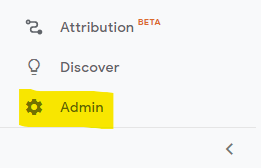
- If so, click the Admin button at the bottom left of the screen.
- Then click the blue Create Property button.

- If so, click the Admin button at the bottom left of the screen.
- Enter a Property Name. We suggest you use your church name with the suffix “Website”
- Change the reporting time zone to United Kingdom
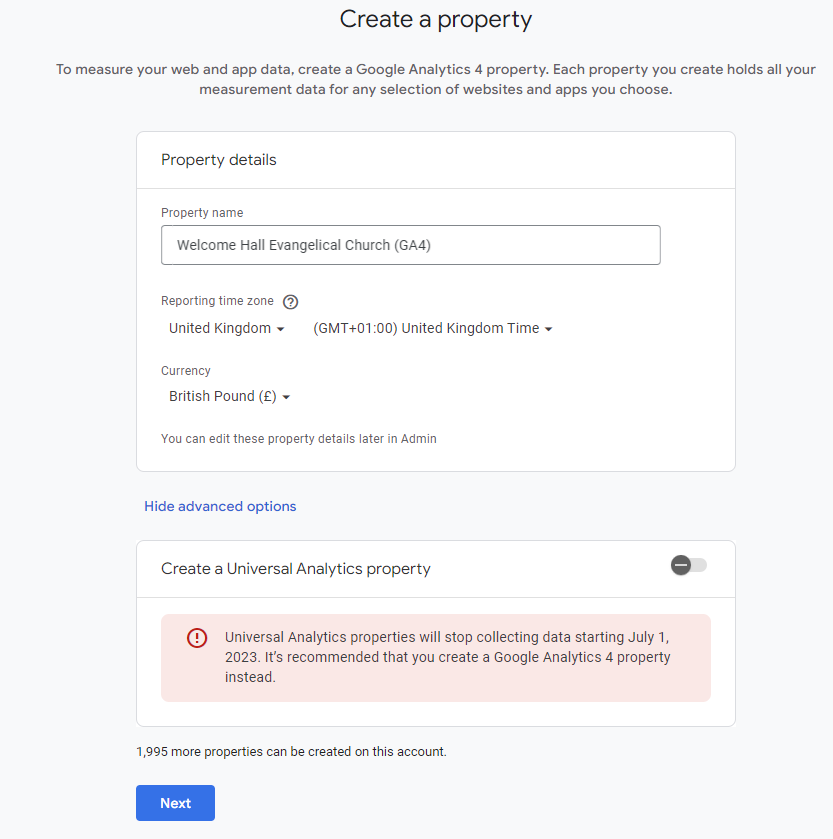
- Press the Next button
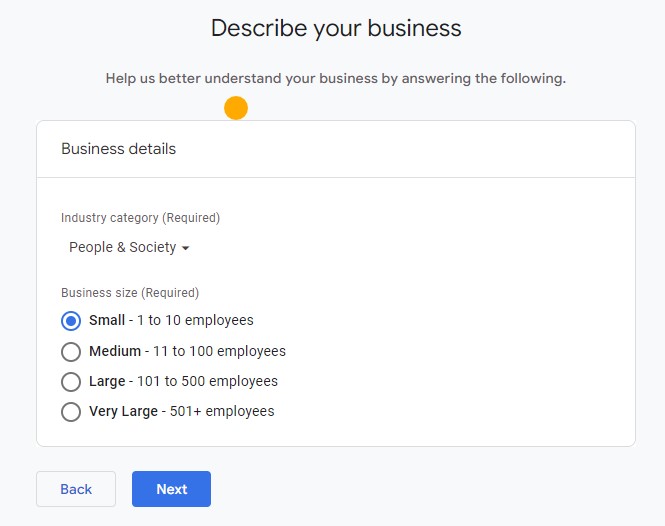
- In the Business Details section, choose an Industry Category (we suggest People & Society); Indicate the number of staff in your Church. Then press the Next button.
- On the “Choose your business objectives” page, select “Examine user behaviour” or any other objectives you think are appropriate.
- Press the Create button
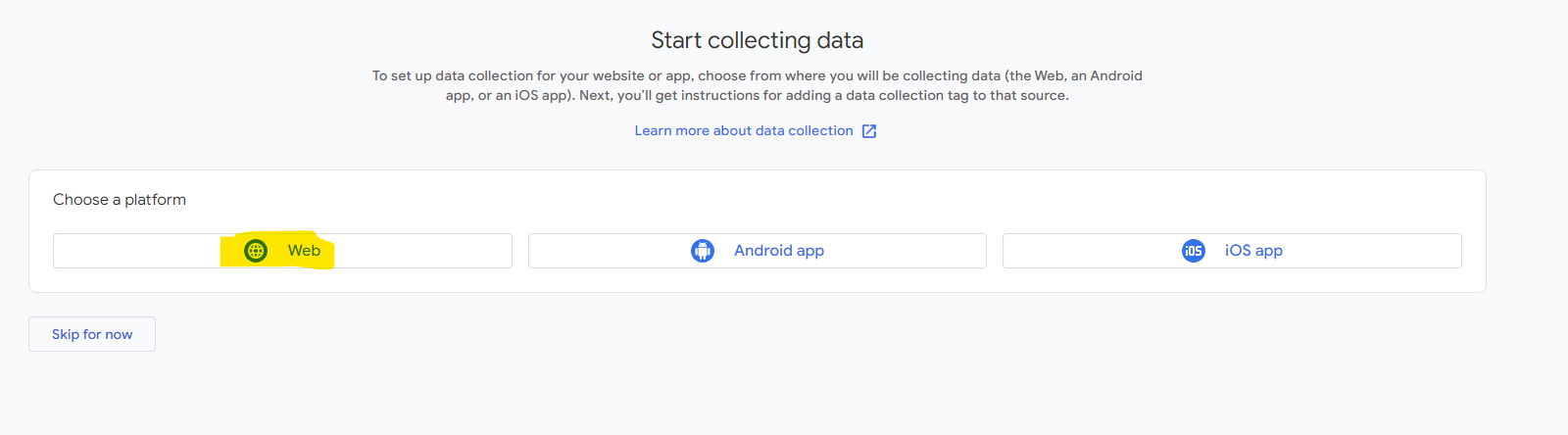
- On the “Start collecting data” screen, click the Web platform button.
- In the Set up your web stream window, enter the domain name of your website, e.g. www.mywebsite.com. Enter your church name under Stream name. Now press the Create stream button.
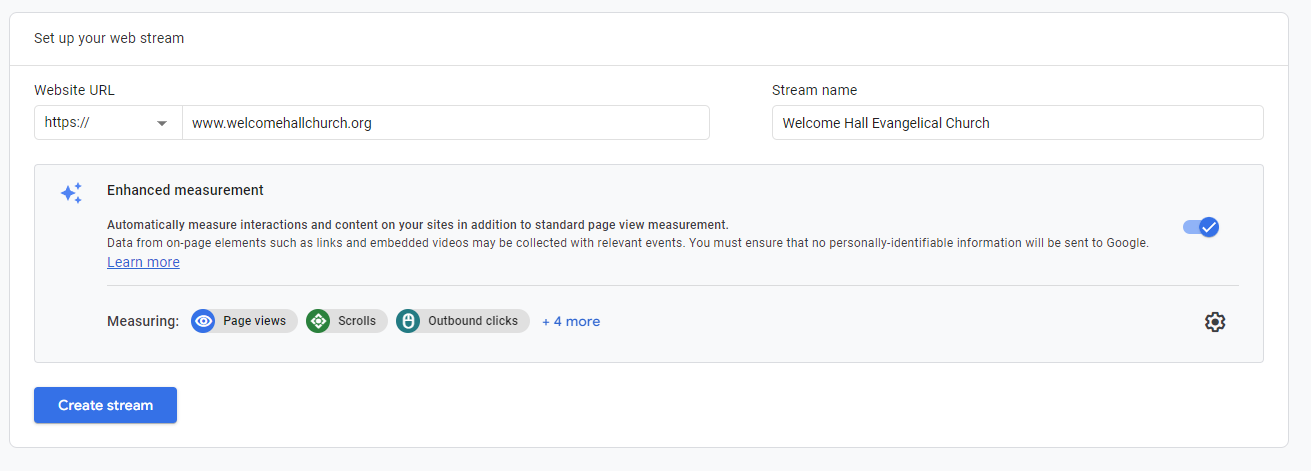
- You should now see the Web stream details page. From this you need to make a copy of the Measurement ID (which begings with “G-“) which you will need in a future step.

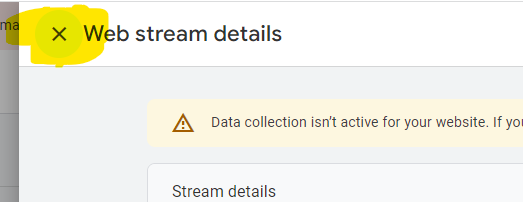
- Now click the X button at the top left of the Web stream details dialog.
- Click Next and then click Continue to Home
- If you are asked about connecting this GA4 property to an existing UA property click Skip for now
- You should now be on your property Home page. Click the Admin button at the bottom left of the screen.
- Click the Account Access Management button. Then press the blue plus button at the top right of the screen. Choose Add Users, then enter the email address of the TruthVine developer who is setting up your site for you – they will advise you which address you need to use. Select “Editor” as the role. Finally press Add.
Adding the Tracking Code to your WordPress Site
- Log into the Admin Dashboard of your WordPress site.
- Click the Options button in the left-hand navigation panel.
- Scroll down until you see the Google Analytics section. Paste the code you copied at step 14 above into the box labelled “Analytics Tracking ID”
- Now scroll to the top of the Options page and press Update
Creating a Google Search Console Account
Important: The following steps will not work unless if you have added the Tracking Code into your WordPress site as above
- Go to https://search.google.com/search-console. If you’ve never used Search Console before, you’ll see a Start now button. Click this and then sign in, using the same account you used for Google Analytics. You’ll now see the property type selection screen
- If you have used Search Console before, you should see your Search Console home page. Click the dropdown showing you website name at the top left of the screen (underneath the Google Search Console title). Press the Add Property button. You’ll now see the property type selection screen.
- At the property type selection screen, in the box headed Url prefix enter the full website address of your site – it’s important to include the https:// prefix. Press the Continue button.
- You should now see a window headed “Ownership auto verified”. Click the Go to Property button.
- Click the Settings button near to the bottom of the left-hand navigation bar
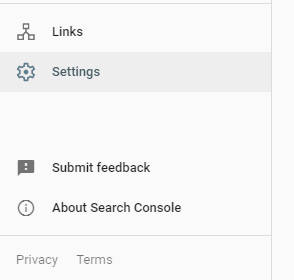
- Press Users and Permissions, then press Add User. Enter the email address of the TruthVine developer who is assisting you, then press Add.