


A must-have feature for a church website is a calendar showing dates and times of upcoming services and events. We recommend Google Calendar for managing your church diary, and the Simple Calendar plugin for displaying this on your website.
Websites supplied by TruthVine come with Simple Calendar already set up. As part of the set-up process we will link your website to your church’s Google Calendar for you. All we need from you is your Google Calendar Id.
How to find your Google Calendar Id.
Log in to Google
First, go to https://calendar.google.com/
You’ll probably already be signed in to your Google account, and you’ll go straight to you Calendar page.
If you’re not already signed in, do that now.
Do you not have a Google Account yet? Then you should see an option to allow you to Create a new account for your church Calendar.
Identify your Calendar
Now you need to identify the correct calendar. You want to avoid publishing your personal diary for all the world to see!
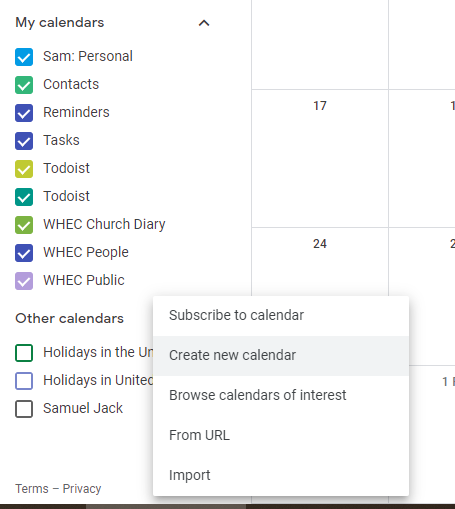
If you already have a church calendar set up, you’ll see it in the list of calendars on the left hand side of the page.
If you don’t yet have a calendar for your church you can create one by right-clicking on the list of calendars, then choosing “Create new calendar”.
Open the Settings page
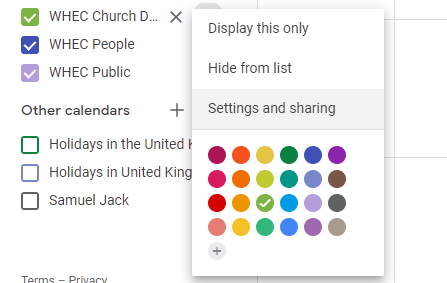
Now that you’ve located your church calendar in the list, hover over it. Click the three little dots that appear next to it . Then click ‘Settings and Sharing’.
Make the Calendar Public
On the settings page, scroll down until you come to the section called ‘Access Permissions’ and check the box which says ‘Make available to public’.

Your Calendar Id at last!
Keep scrolling down the page until you come to the section called ‘Integrate Calendar’. There’s your Calendar ID! Copy that and send it to us.

If you are having difficulties with any of the above, please get in touch and we can talk you through it.