


Using TruthVine Studio
Getting Started
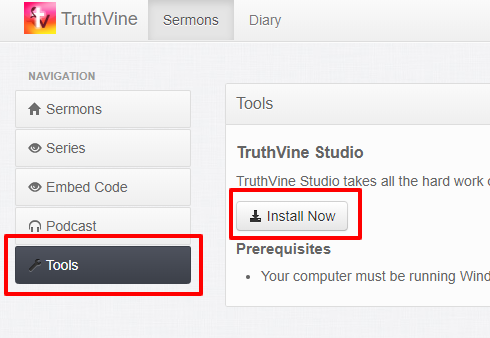
Download TruthVine Studio. You can get it by logging in to your online TruthVine account, then clicking the Tools tab and selecting Install now.
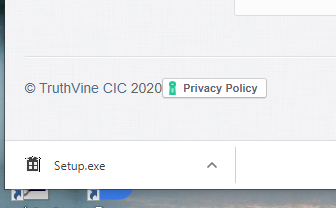
Install it. On Google Chrome, you will see the file appear in the downloads bar.
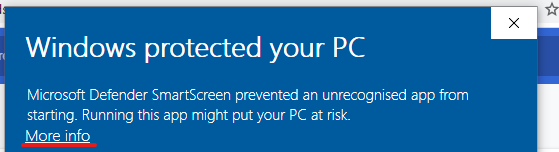
You may see a Windows Smart Screen dialog. If so, press the More Info link and then a Run Anyway button will appear.
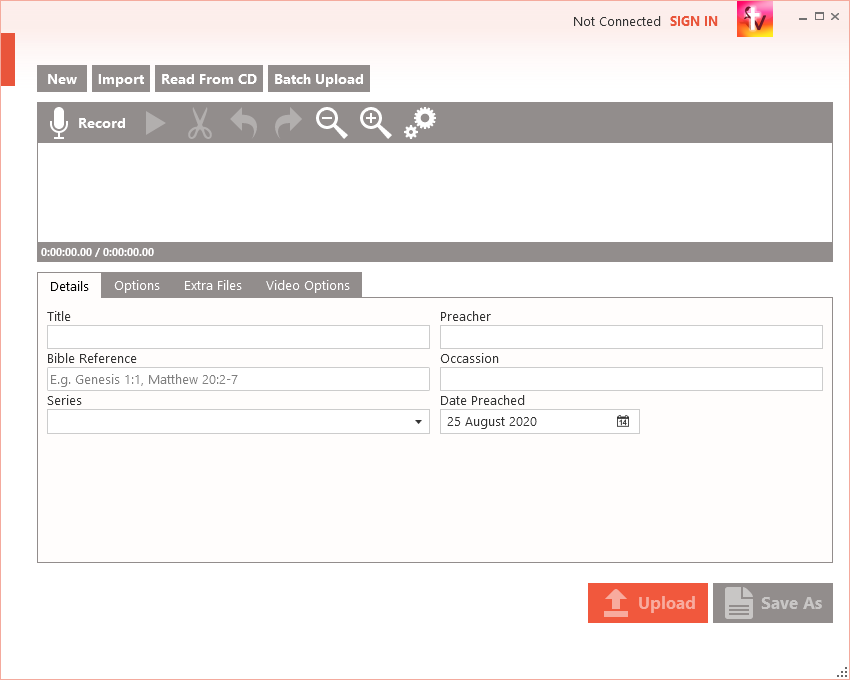
Run for the first time. After a few seconds the TruthVine Studio window should appear.
On future occasions you can get to TruthVine Studio by opening the Windows Start Menu and typing “TruthVine” or by scrolling through the programs list to locate it.
Recording a sermon
Log in to TruthVine. Click the Sign In link at the top right of the TruthVine Studio window.
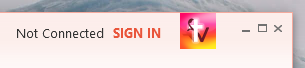
Enter your TruthVine login details (note that these will be different to your WordPress website login details.) and press Login. If you have multiple TruthVine accounts you will need to choose the one to use on this occassion.
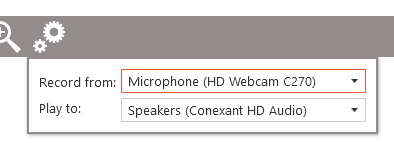
Ensure the correct microphone is selected. Click the Settings button to choose which microphone to record with.
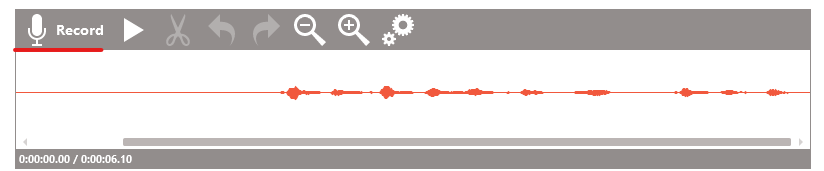
Press the Record button. You should then see a waveform depiction of your recording scroll along the screen. Press Stop to complete the recording. You can record and stop multiple times if you wish.
Enter the sermon details. Entering a scripture reference is optional, but if you do it must be in the following form: Genesis 1:1-23. Avoid using forms like ch1v23, or our software will not be able to locate the correct passage of scripture to display alongside the sermon. Multiple scripture references can be separated by semicolons.
In the Series dropdown you can enter the title of a new series, or select a current series by pressing the dropdown arrow.
Editing a Sermon recording
You can use the Trim tool to remove periods of silence, paper shuffling and such-like from the recording. First locate the area to remove.
You can use the Zoom controls to enlarge or shrink the waveform to find the precise times you want to target.
Drag with the mouse over the area you want to remove. A selection box will be drawn over the area. You can adjust it by dragging its left or right ends, or by clicking in its middle and dragging the whole box.
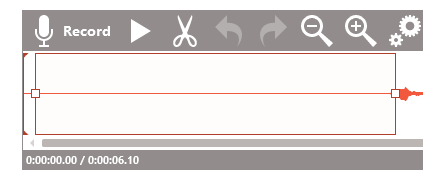
Once you have made your selection, click the Trim button to remove it. You can now click any point in the recording and press Play to hear how the recording sounds. If you find you have made a mistake, use the Undo button to go back and try again.
Importing a previously recorded sermon
To import a sermon from a file (for example, on a USB recorder), press the Import button, and then locate the file.
To read a sermon from a CD, press the Read from CD button, choose the appropriate drive, then tick the boxes of the tracks that make up the single sermon. You can use the play button to the right of the track to preview it.
Uploading a Sermon
To upload a sermon to the web, ensure you have entered all its details, then press the Upload button.
If you need to make changes to any details after this, go to the TruthVine web interface and locate the sermon in the list there.